VOCABULARY / ENTRY
Kanban Board
kanban
A set of work items shown as cards, placed in columns that run from left to right according to their status: each column is one stage of the workflow, cards move from column to column as work advances, and the whole board shows at a glance how much is piling up at each stage.
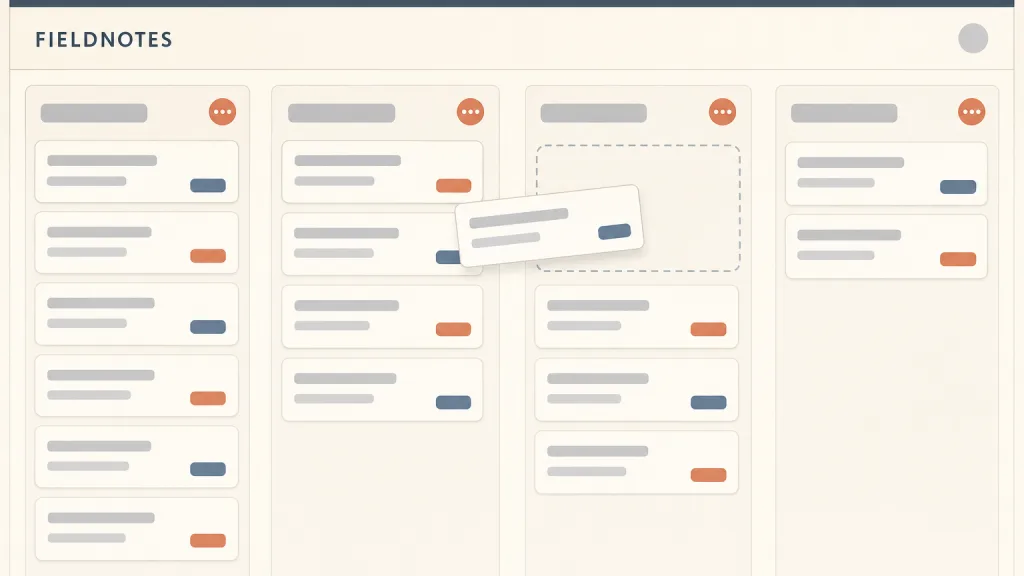
Recognizing it
- Several vertical columns run left to right, each standing for one workflow stage
- Each card is one work item, and the column it sits in is its current status
- Status changes by moving a card to another column rather than by editing a field
Concept boundary
This entry means an interface layout — the “status columns plus cards” presentation — not the kanban practice of lean manufacturing or the Kanban Method used by software teams. Those come from the kanban signals that travel with materials in the Toyota Production System and centre on limiting work in progress and pulling work through the flow; a board layout does not by itself put any of that into practice, and drawing columns and cards is not the same as using the method. It is not a card grid: in a card grid a card’s position carries no meaning, while on a kanban board the column a card sits in is its status. Nor is it a status field in a table: a table suits comparing items attribute by attribute, a board suits watching how work is distributed and how it flows between stages.
When to consider it
- Work items pass in order through a few clearly defined stages
- The team needs to see at a glance which stage has a backlog
- Item status changes often and needs to be cheap to update
When to be cautious
- Work items share no common workflow stages, so the columns would be arbitrary
- There are many items and few stages, so every column grows too long to browse
- Users mainly need to sort, compare or bulk-edit items by several attributes
Tradeoff
Turning status into position makes distribution and backlogs visible at a glance and makes a status change a single move; the cost is that width grows with the number of columns, so a narrow screen shows only one or two at a time, and once a column holds many cards, finding one by another attribute is easier in a table or list.
Conditional rules · Editorial advice
Related entries
In a card grid a card’s position carries no meaning, which suits browsing and discovery; on a kanban board the column is the status, which suits watching flow. Use the grid when the items share no workflow stages.
Drag and drop is the most common way to change status on a board, but it is only one input; moving a card should also work from a menu or the keyboard.
The column answers “how far along is it”, assignment answers “who owns it”; showing the assignee on the card lets both be read from the same board.
Filtering shows only one person’s or one label’s cards while keeping the column structure, so users do not have to fall back to a table just to find something.
Sources and what they support
The guide (no version or date shown on the page) explains that kanban boards are the most common means of visualising a Kanban system, with workflow steps shown as columns and work items as cards or tickets; it also notes that a Kanban system includes metrics, cadences and policies besides the board and tickets, and calls WIP limits key to establishing a pull system. This entry paraphrases the “columns plus cards” structure from it and uses it to separate the interface layout from the Kanban Method.
Retrieved: 2026-10-20 · Snapshot unconfirmedThe article (first published 31 May 2013, updated 26 July 2024, by Toyota (GB) PLC) explains that “kanban” literally means “signboard”: a sign that travels with goods and, once the items are used, goes back to the preceding process as an order for more; it calls kanban the quick-response system through which Just-in-Time production is achieved. This entry uses it only to explain the manufacturing origin of the name and does not treat its production rules as interface requirements.
Retrieved: 2026-10-20 · Snapshot unconfirmedDefinitions reference these sources. Digital specimens, selection advice, relationships, and recipes are editorial work and have not been validated through user research.
Type extensions and implementation notes
This entry has no runnable specimen; the illustration is an editorial sketch of how status columns relate to cards, its work items are invented, and it does not represent a verified implementation. Before shipping, confirm that cards can be moved without drag and drop, and check on a narrow screen that column names and counts stay visible.
{
  "states": [
    "wide",
    "compact"
  ],
  "a11y": [
    "Each column has a readable name and card count, and a card announces which column it is in",
    "Cards can be moved with the keyboard or a menu, and the result is reported as a status message"
  ],
  "motion": "A moving card may slide briefly; under a reduced-motion preference it lands in its new place directly"
}
Open the Agent JSON file for this entryThis file repeats every field of this entry verbatim and adds its sources, archive status, and editorial scope.